GMSL#
This guide covers connecting and configuring a GMSL camera using the AAEON CEXD-INTRBL FAKRA ports. Use of this interface requires software setup, including installing the Robotics AI Suite. Make sure you’ve followed the Getting Started guide.
Physical Connection#
The AAEON CEXD-INTRBL development kit includes a built-in GMSL connector board. You can see two FAKRA connectors exposed on the external housing. These support up to 8 connections, split between both ports.
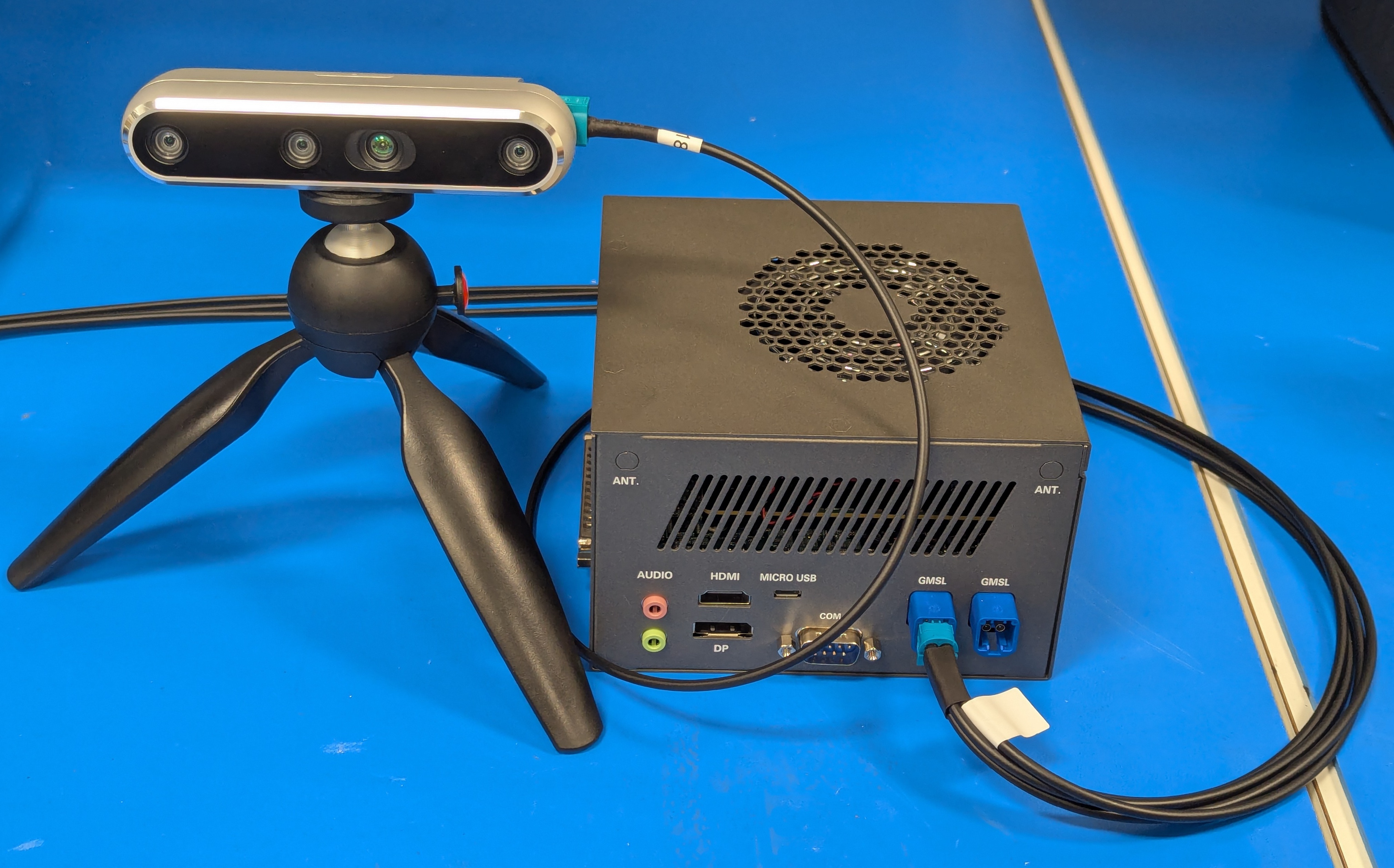
For RealSense D457 GMSL cameras, connect a maximum of 2 cameras to each GMSL 4-in-1 FAKRA port. This optimizes bandwidth for the multi-sensor devices. Additional connections for this camera is not currently supported by Robotics AI Suites, and may not be supported by the manufacturer.
BIOS Configuration#
You can access the ACPI GMSL settings under the System IO menu.
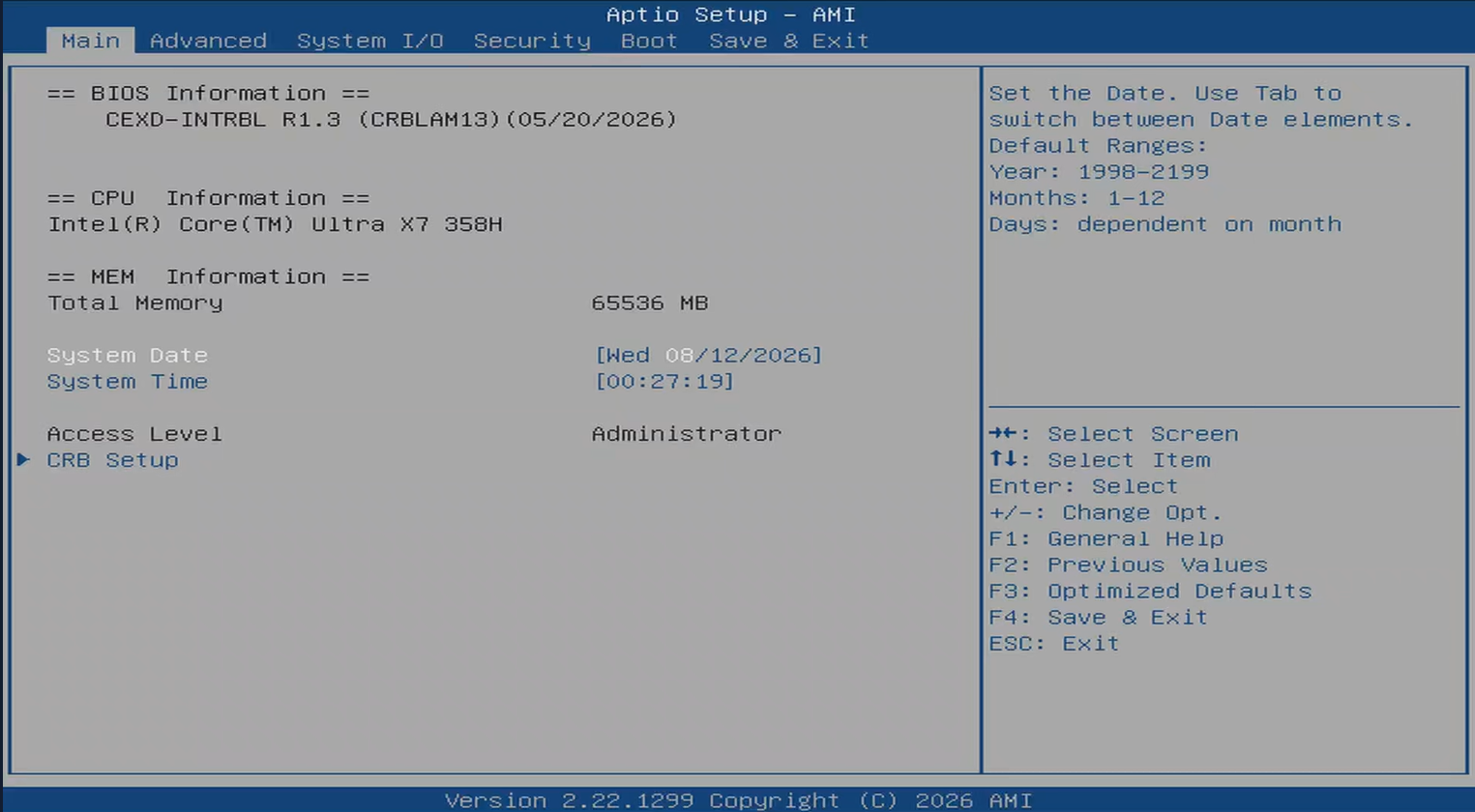
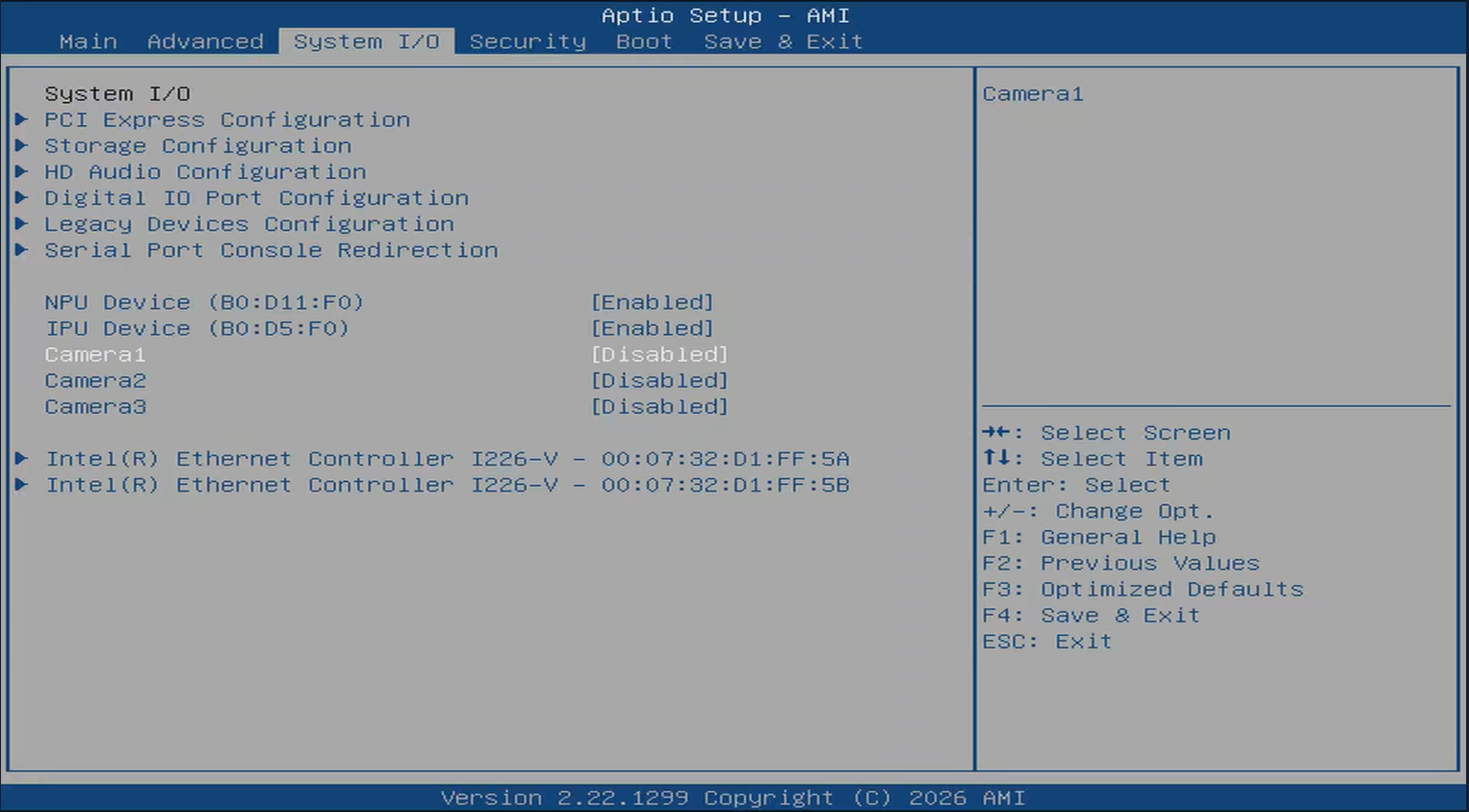
Select Camera1 and make sure all are Disabled.
Next steps#
Once you’ve setup your ACPI GMSL settings for your camera, continue with Step 2: GMSL Software Driver