RealSense Cameras with ROS 2#
This section shows how to install and run a ROS 2 sample application that uses RealSense cameras and ROS Visualization 2 (RViz2).
You will learn how to:
Launch ROS nodes for a camera.
List ROS topics.
Confirm that RealSense camera topics are publishing data.
Retrieve data from the RealSense camera.
Visualize an image from the RealSense camera in RViz2.
You can run this sample application using two different types of RealSense cameras, explained further in this section:
A RealSense camera connected through USB, for example, the RealSense D435i.
Note
Currently USB cameras are the only supported cameras.
Prerequisites#
Complete the Getting Started guide before continuing.
Install the RealSense ROS 2 Sample Application#
Download and install the RealSense camera with ROS 2 sample application:
sudo apt-get install -y ros-jazzy-realsense2-tutorial-demo
sudo apt-get install -y ros-humble-realsense2-tutorial-demo
Run
find_cameras.shto detect the connected camera type:/opt/ros/$ROS_DISTRO/share/realsense2_tutorial/scripts/find_cameras.sh
Using RealSense camera connected through USB#
Connect a RealSense camera (for example, RealSense D435i) to the host, through USB.
Run the RealSense camera with ROS 2 sample application, passing the
camera_typevalue reported byfind_cameras.sh(it defaults tousb):ros2 launch realsense2_tutorial realsense2_tutorial.launch.py camera_type:=usb
Expected output: The image from the RealSense camera is displayed in rviz2, on the bottom left side.
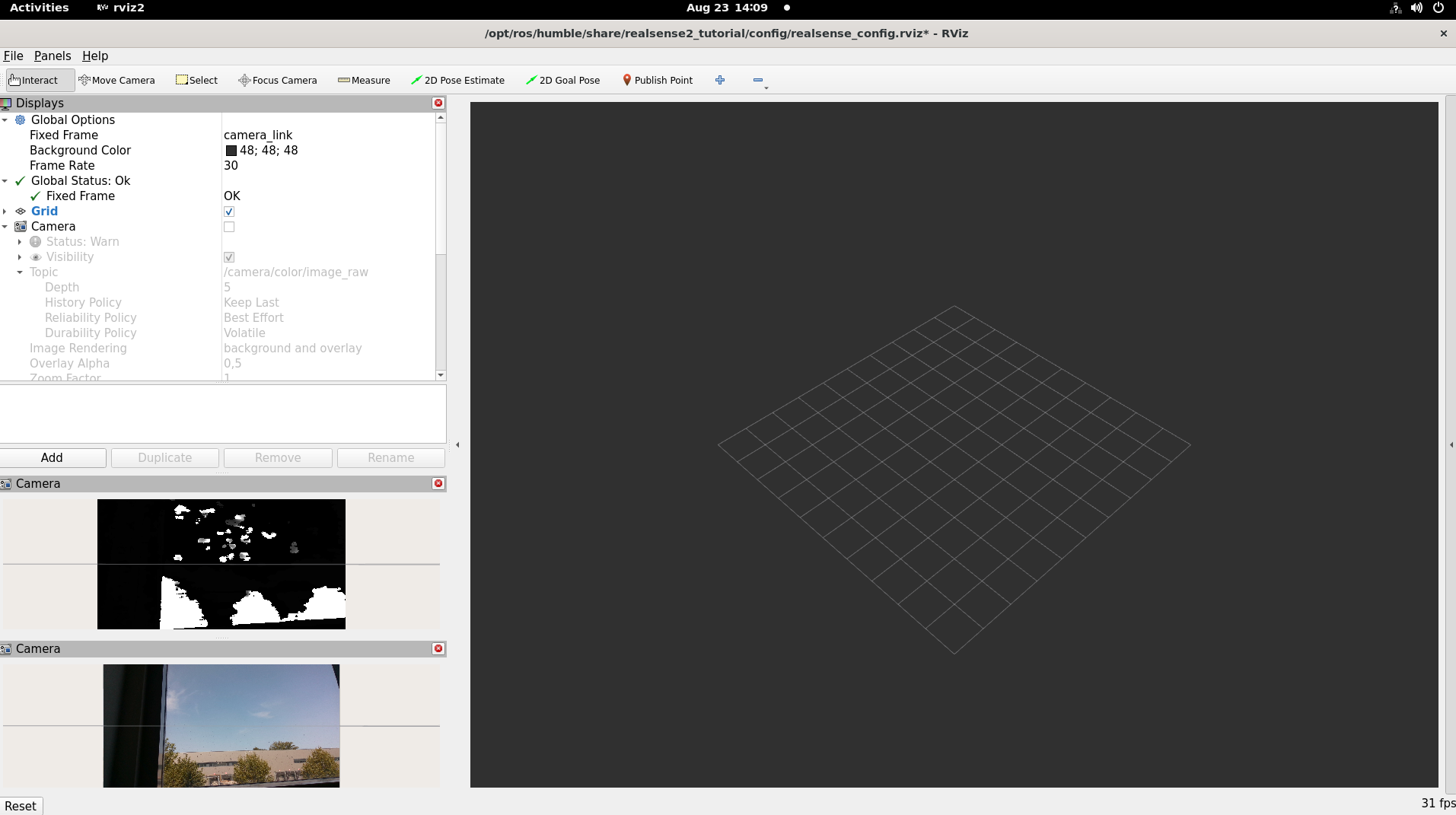
To close this, do the following:
Type
Ctrl-cin the terminal where the tutorial was run.
Using RealSense Depth Camera D457 over GMSL#
Connect the RealSense Depth Camera D457 to a GMSL-enabled platform, then power on the target.
Note
Select the “MIPI” mode of the RealSense Depth Camera D457
by moving the select switch on the camera to “M”, as shown in the picture below:
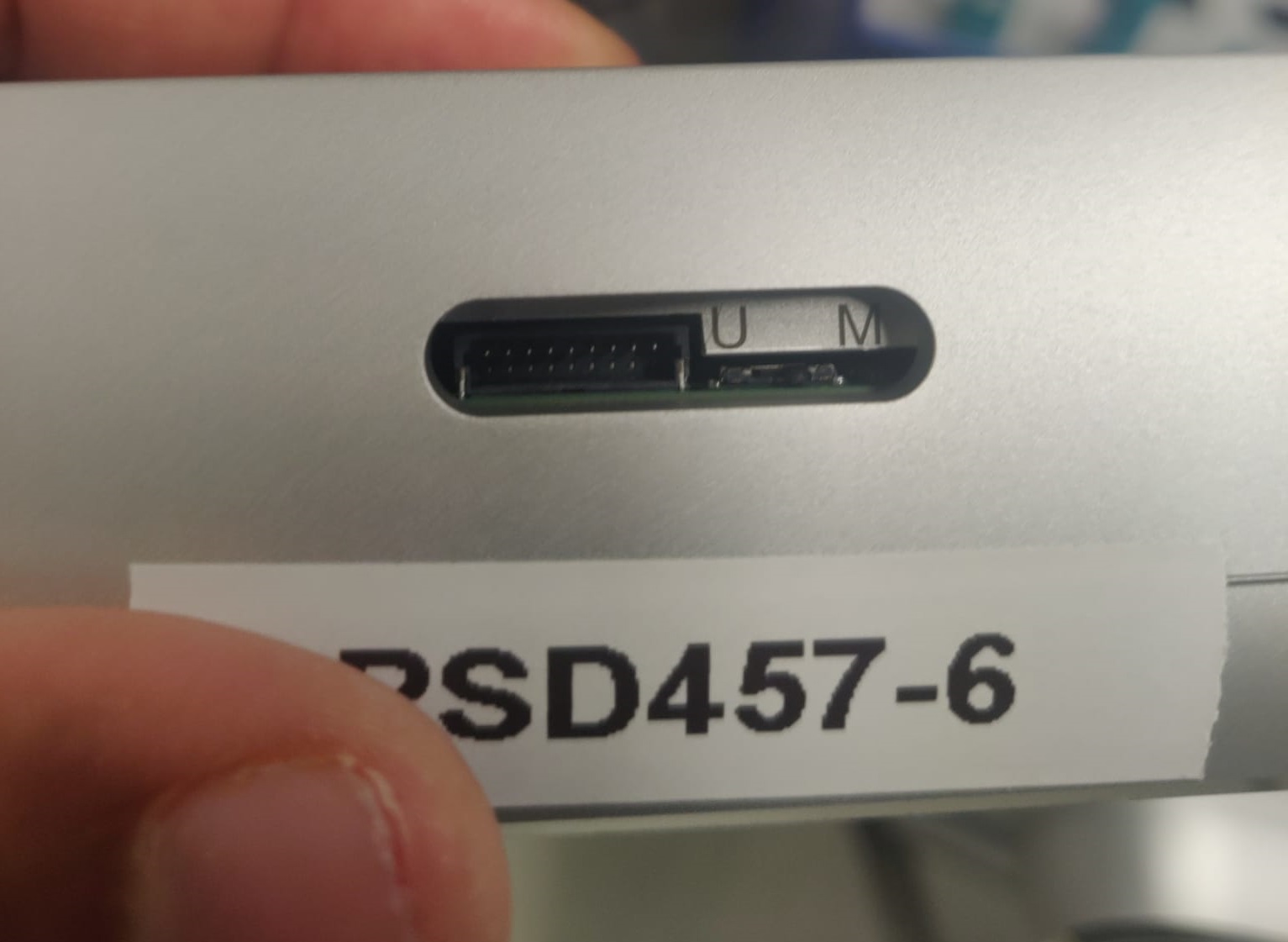
Follow the GMSL Cameras guide to configure the BIOS, install the GMSL driver, and bind the RealSense D457 camera (the RealSense tab of the “Bind GMSL camera” step) before continuing.
Run the RealSense camera with ROS 2 sample application#
Run the RealSense camera with ROS 2 sample application, passing the
camera_typevalue reported byfind_cameras.sh:ros2 launch realsense2_tutorial realsense2_tutorial.launch.py camera_type:=gmsl
Expected output: The image from the RealSense camera is displayed in rviz2, on the bottom left side.
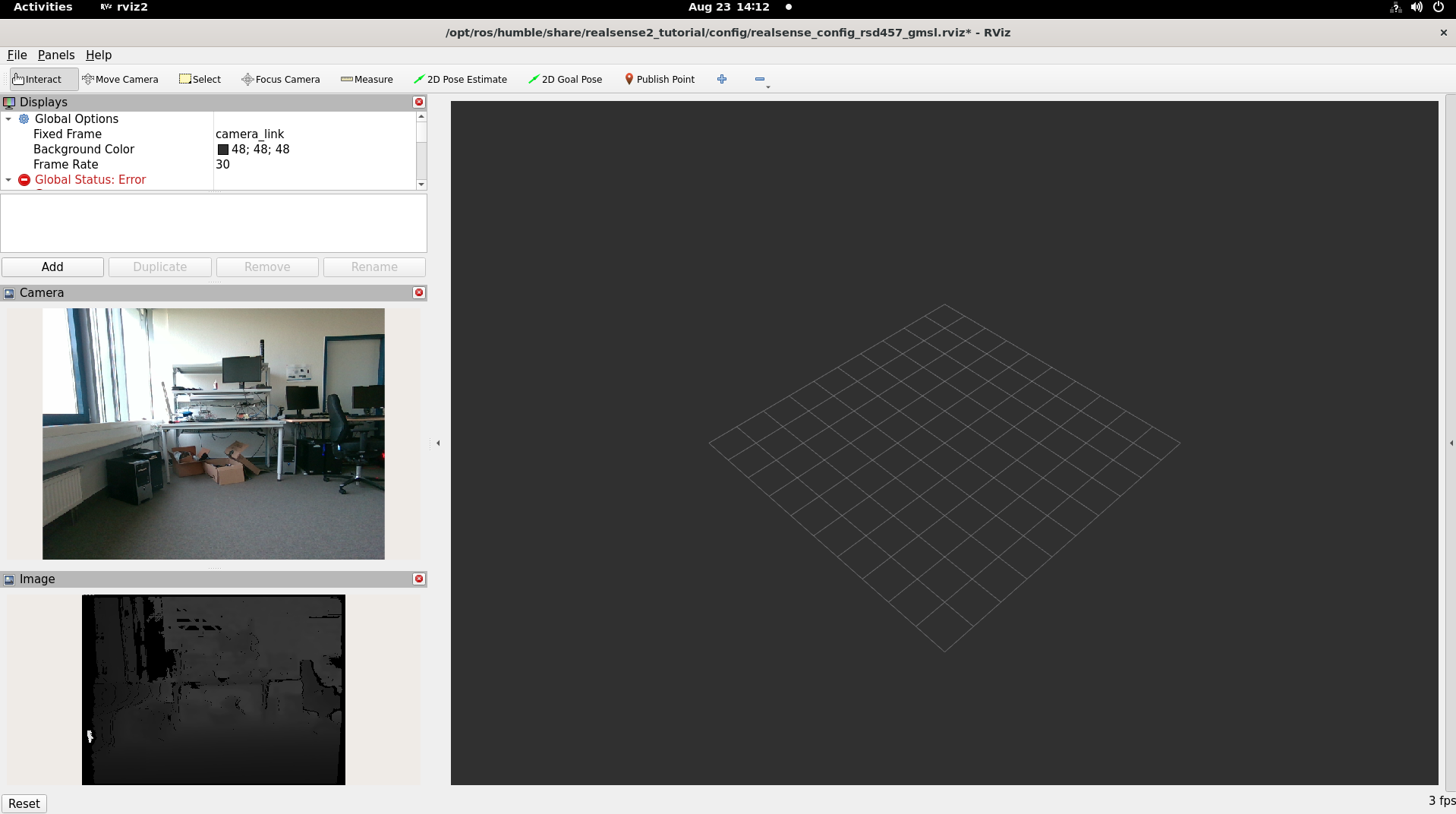
To close this, do the following:
Type
Ctrl-cin the terminal where the tutorial was run.